Installing Keystrip
Keystrip needs macOS 14 Sonoma through macOS 27 on a Mac with Apple silicon. It is sold directly, not through the Mac App Store, and isn't notarized by Apple yet. So the first time you open it, macOS asks you to confirm that you trust it. This takes about a minute and only happens once.
The pictures on this page are illustrations, not screenshots. The exact wording of the macOS dialogs and settings differs between macOS versions.
1. Copy Keystrip to Applications
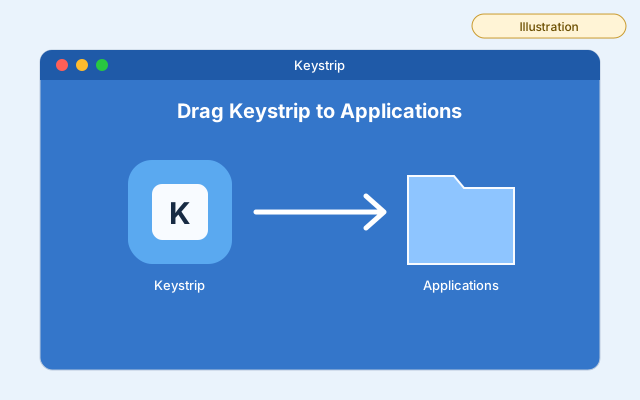
- Open the downloaded disk image (Keystrip-version.dmg).
- Drag Keystrip onto the Applications folder in the same window.
- Eject the disk image (the eject button next to "Keystrip" in a Finder window's sidebar).
- Open your Applications folder and double-click Keystrip.
Don't open Keystrip from the disk image window. Run from there, macOS starts it from a temporary place, and Keystrip can't install its own updates.
2. In the warning, click Done
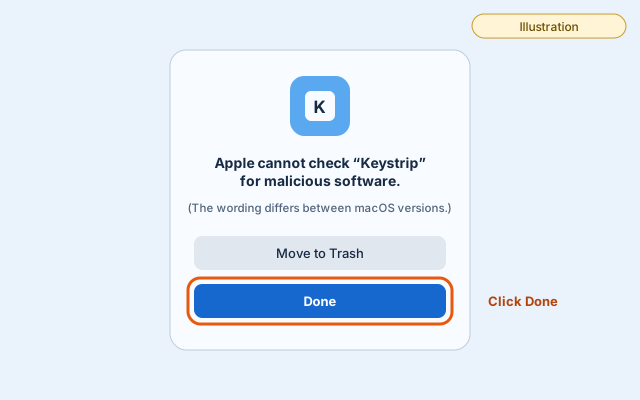
macOS shows a warning that it can't check Keystrip, with two buttons. Click Done. Don't click Move to Trash.
3. Allow Keystrip in Privacy & Security
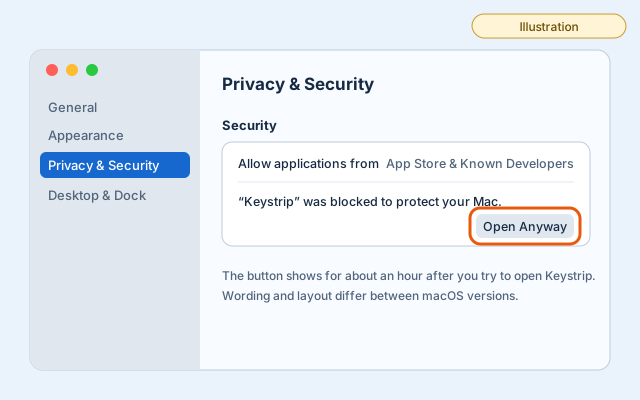
- Choose Apple menu > System Settings, then click Privacy & Security in the sidebar. (You may need to scroll down.)
- Go to Security. Next to the message about Keystrip, click Open Anyway.
This button is there for about an hour after you tried to open Keystrip. If you don't see it, open Keystrip from Applications again, click Done, and come back. - Click Open when macOS asks again.
- Enter your login password (the one you use to log in to your Mac), then click OK.
macOS now remembers Keystrip as an exception, and it opens normally from then on.
4. Allow Accessibility
Keystrip presses menu items for you, so it needs the Accessibility permission. On first launch it asks once and shows an Open Settings button on the strip.
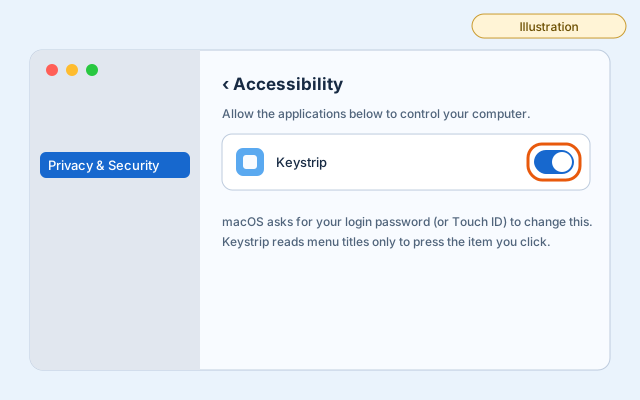
- In System Settings > Privacy & Security > Accessibility, turn on the switch next to Keystrip.
- macOS asks for your login password or Touch ID.
Keystrip notices within a few seconds; you don't need to restart it. It reads menu titles only to press the item you click, and menu titles never leave your Mac.
Updates
Updates are included with your license. Keystrip checks for a new version about once a day and asks before installing it; you can also choose Check for Updates… in Keystrip's menu-bar menu at any time. Automatic checks can be turned off in Settings › About › Updates. Updates keep your strips, settings and license, and normally your permissions too (if Keystrip asks for Accessibility again, it shows its permission guide with a button to the right page in System Settings; see also below). Keystrip 1.0.0 doesn't check for updates yet: get 1.0.1 or later once from your Polar customer portal or the Download page, and replace Keystrip in Applications.
Something didn't work?
- No Open Anyway button: open Keystrip from Applications once more, click Done, then look again in Privacy & Security within the hour.
- Keystrip asks for Accessibility again after an update: in Accessibility, select Keystrip, remove it with the minus button, then open Keystrip and allow it again.
- Anything else: write to [email protected] and say which macOS version you use (Apple menu > About This Mac). We'll help you get it running. Community & questions on Discord: https://discord.gg/fsVYyNfvUX